Timesheets
Your crew’s week, by person and by day, off the clocks they already ran
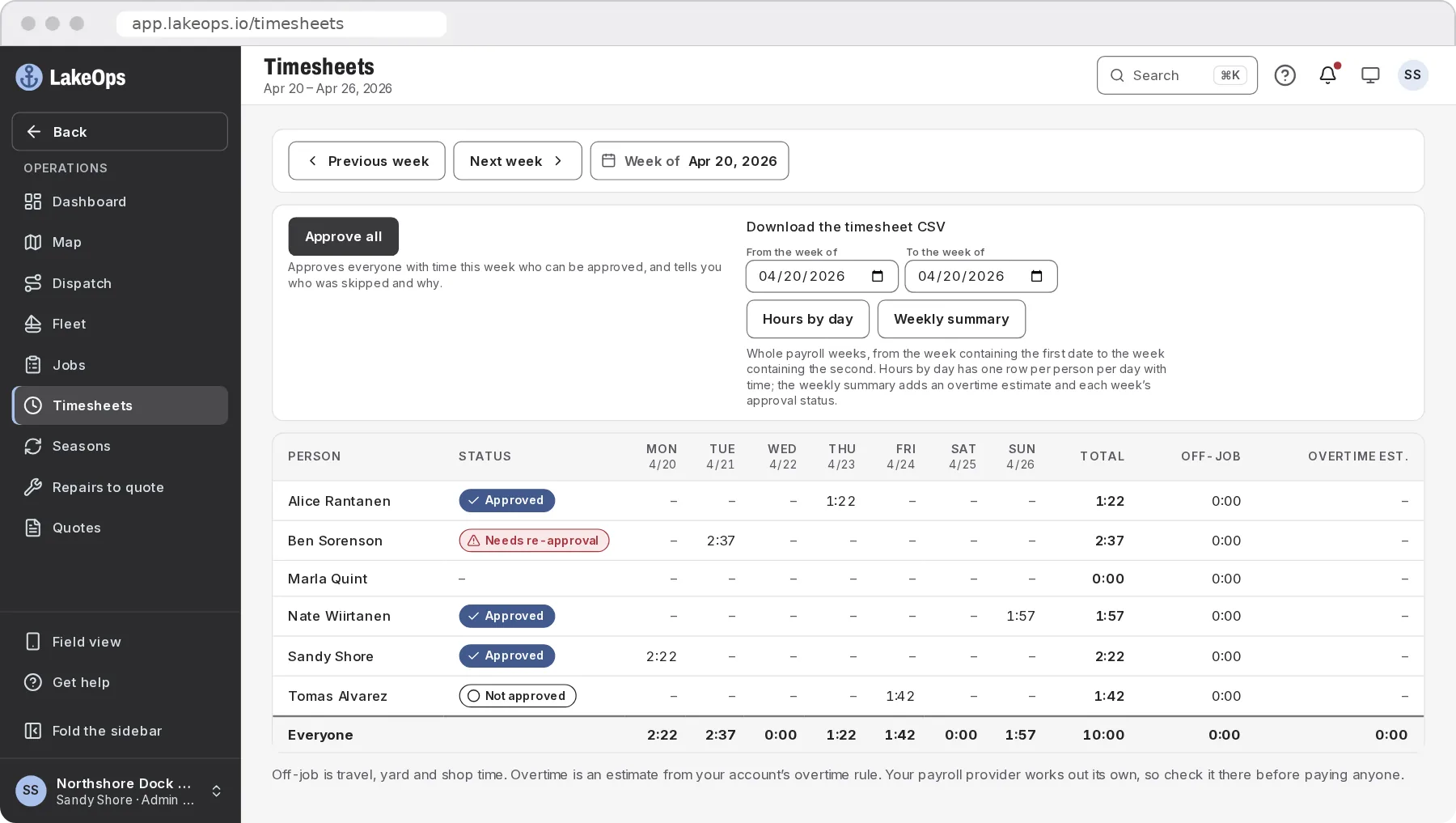
The crew clock records time as the work happens. Timesheets is where the office reads it back as a payroll week: one row per person, one column per day, and the same total the crew sees for themselves. Fix a mistake without rewriting history, approve the week when it is right, and take the hours out as a spreadsheet. Included in the price, like everything else.
One number, everywhere you look
Every figure on every timesheet screen comes from one place, so the number the office reads, the number the crew sees and the number in the download are the same. A night shift that crosses midnight is split between the two days at midnight in your time zone, and one that crosses the end of the week is split between two weeks, so each week holds exactly the hours worked inside it.
- A week starts on the day you choose and runs seven days
- Hours by day, with a total per person and per day
- Time that is not on a job — travel, yard, shop — sits beside job time and is totalled with it
- A clock still running is not counted until it stops, and the grid says so
Corrections that never edit
Correcting an entry does not change it. The original is struck out with who did it and why, and a replacement is recorded that points back to it. Struck-out entries stay on the page and never count, so the week adds up once, and last month’s question — what did it say before? — still has an answer.
- A reason is required, every time
- Add the travel or yard time nobody clocked, marked as entered by hand
- Void a clock left running by mistake
Approve a week, then close it
Approving is the office saying these hours are right. It is recorded with who and when, one person and one payroll week at a time, or everybody at once, and anyone who could not be approved is named with the reason. An approved week cannot be changed until somebody unapproves it with a reason. When time arrives late from a phone that was out of signal, it is kept and counted, and the approval says it needs another look.
- Approve all, with the people who were skipped named and why
- Needs re-approval: one press approves the new total, and the earlier approval stays in the history
- Close weeks through a date, once everything in them is approved
- Reopening a closed week needs its own permission and a recorded reason
An overtime estimate, labelled as one
Choose one of five overtime rules and every week shows roughly how much of it your payroll provider is likely to treat as overtime. It is an estimate, and it says so wherever it appears: LakeOps never works out pay, and your provider applies its own rules.
- Weekly over 40 or 44, with or without a daily rule over 8 hours, or none
- A suggestion, not advice, for Canadian shops
- No break setting: time on the clock counts, time off it does not
Take the hours with you
Choose a range of whole payroll weeks and download either the hours by person and day or a weekly summary with the overtime estimate and each week’s approval status. The files add up exactly to the screens, week by week.
- One row per person per day, hours by kind and a total, with the minutes alongside so the sum is exact
- One row per person per week, with the estimate and approval status
- Behind its own permission, so the office can see hours without being able to walk out with them
Questions about this
- Do timesheets cost extra?
- No. Timesheets are included in the price, like the reports and the crew app. There is no per-person charge and no second tier.
- Can the office change a crew member’s hours?
- Yes, with a reason. A correction never edits an entry: it strikes the original out and records a replacement that points back to it, so the record of what was there stays. A week that has been approved has to be unapproved first, and a closed week cannot be changed from the office.