Importing
Bring your book with you. Nothing is saved until you’ve seen it.
Most shops arrive with a spreadsheet, an export from the product they’re leaving, or both. Upload it — an Excel workbook or a CSV — and LakeOps reads your headings, says what it thinks each column is, and lets you correct it before a single row is written. Your headings can say anything — you never reformat a file to match us.
From your spreadsheet to your book in five steps
A big book takes a few minutes. You can leave the page while it runs, and an import that stops part-way carries on from the first row that isn’t in LakeOps yet.
-
Upload your spreadsheet
An Excel workbook (.xlsx) or a CSV, up to 20,000 rows. If a workbook has more than one sheet, LakeOps reads one and asks which. No spreadsheet yet? Download ours, with every column the importer understands.
-
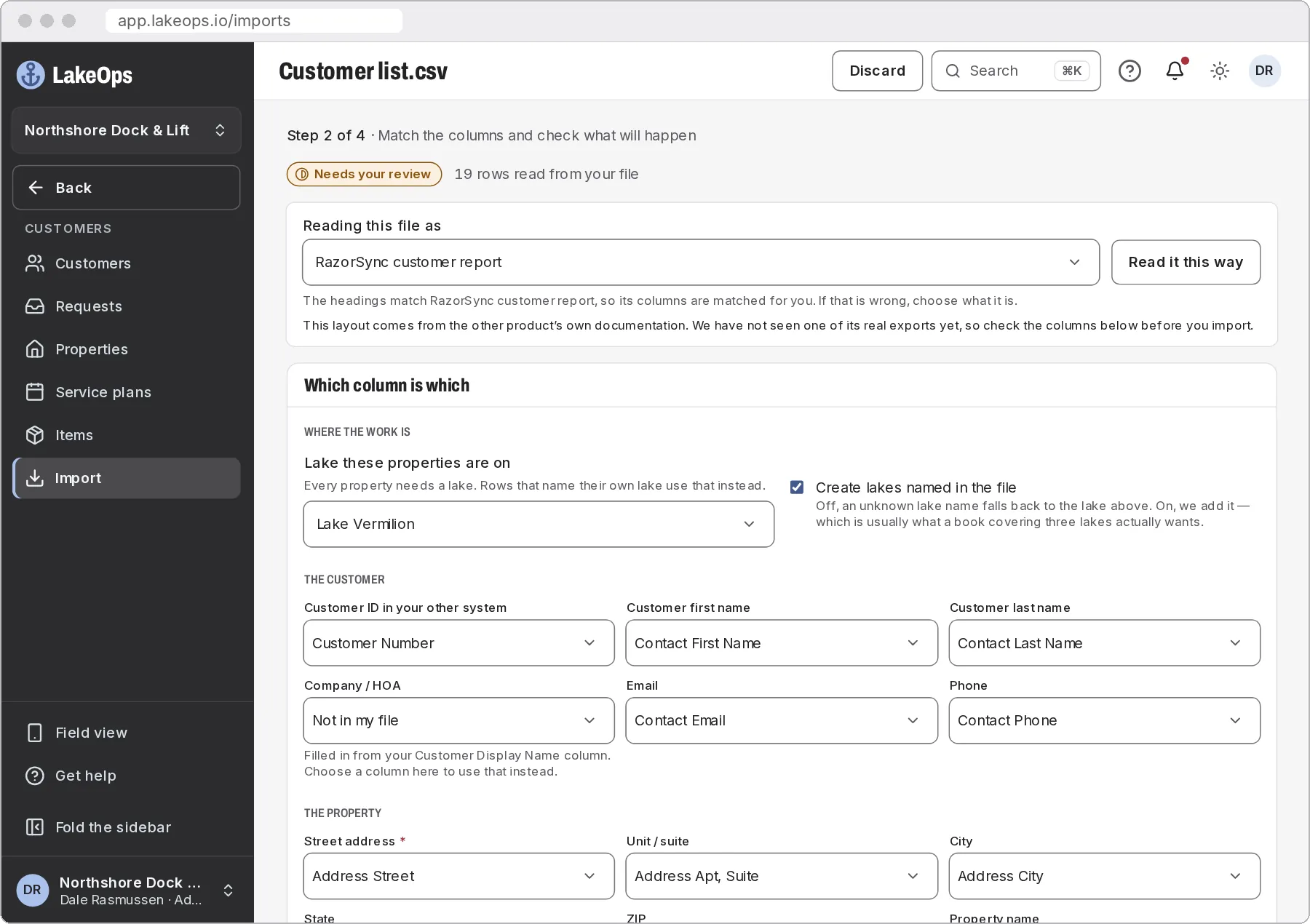
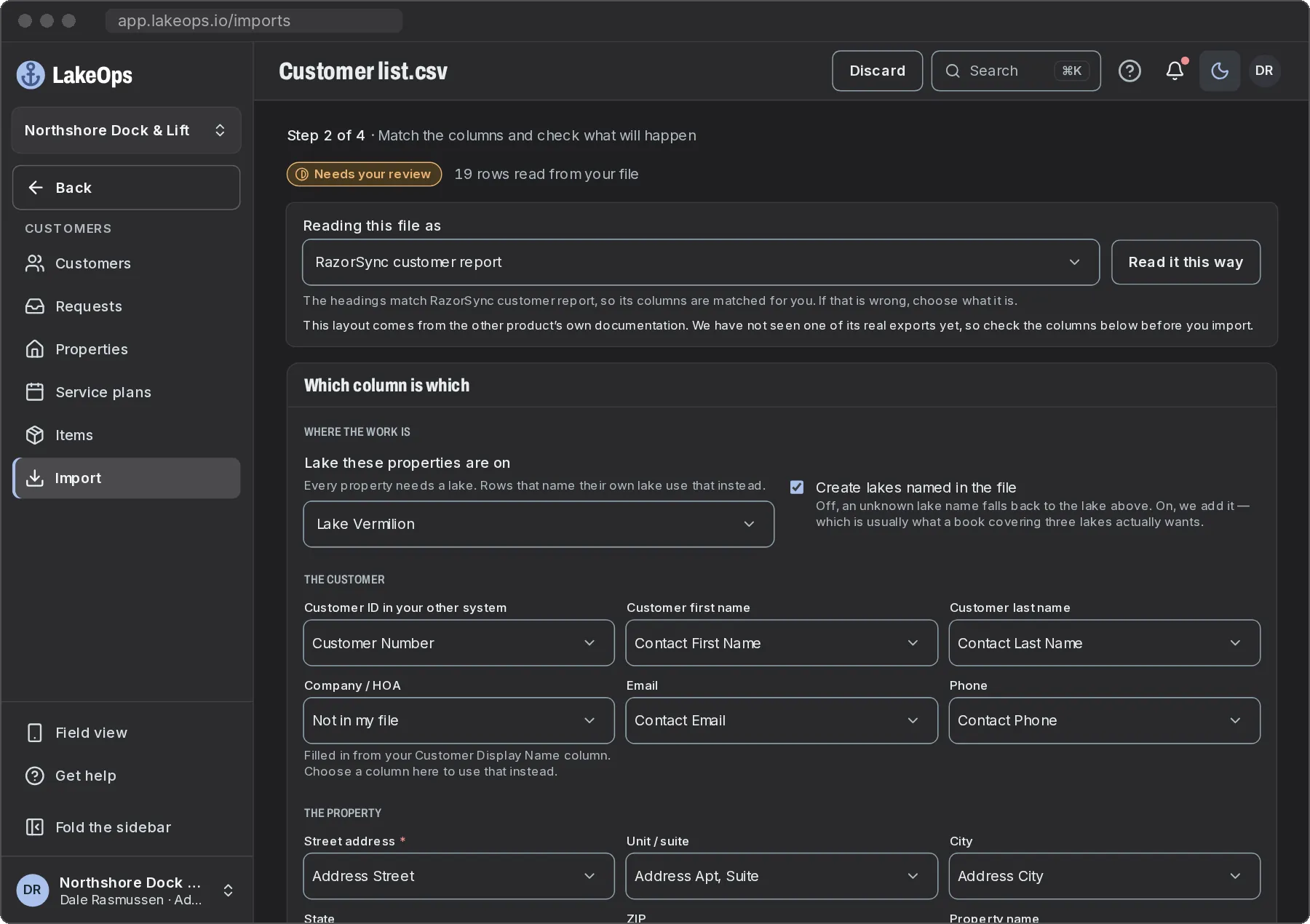
Check which column is which
Under “Reading this file as”, LakeOps says what it recognized. Every field shows the column it will be filled from, and when that isn’t the obvious one a note says so — “Filled in from your Customer Display Name column” — so you can choose another.
-
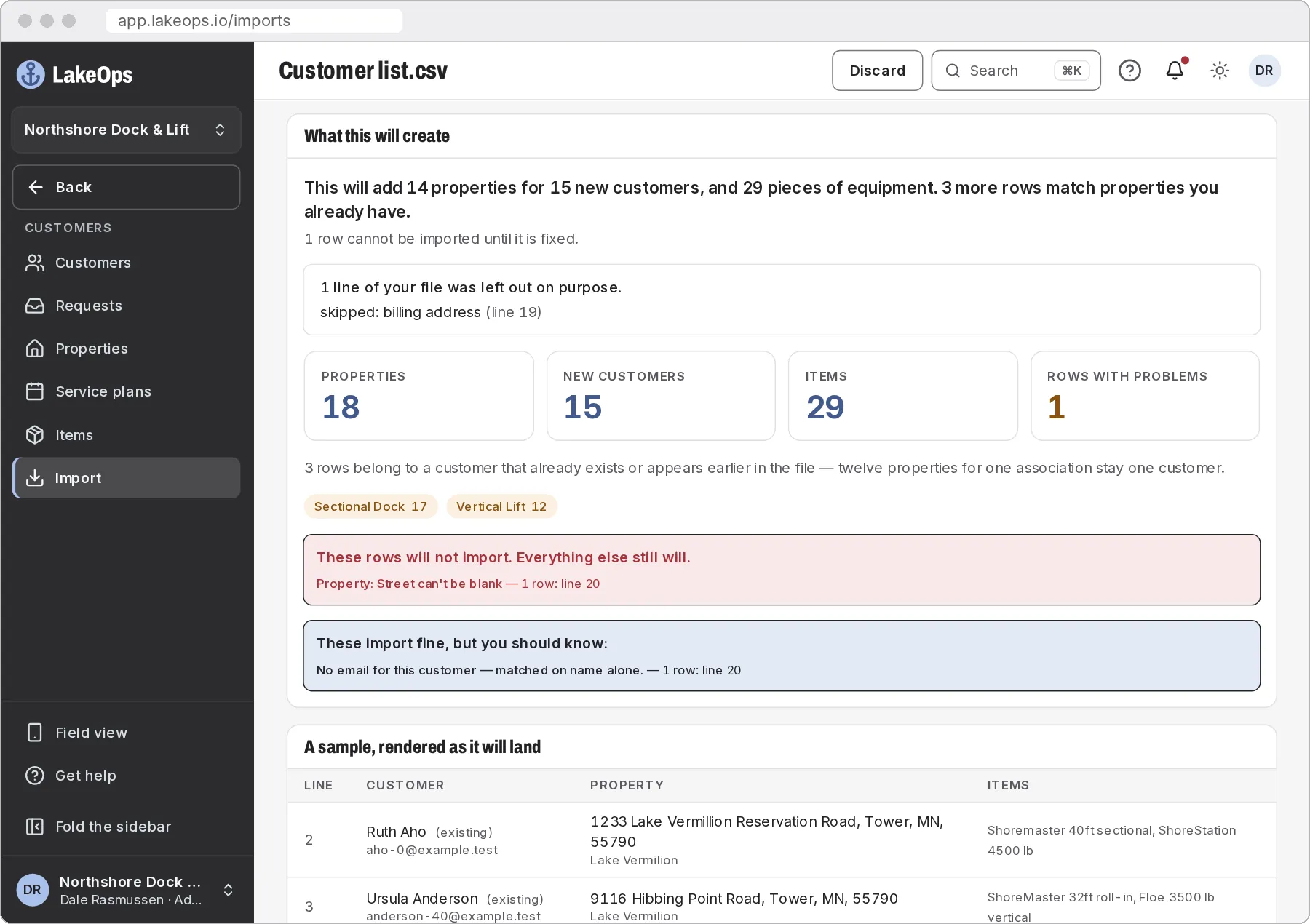
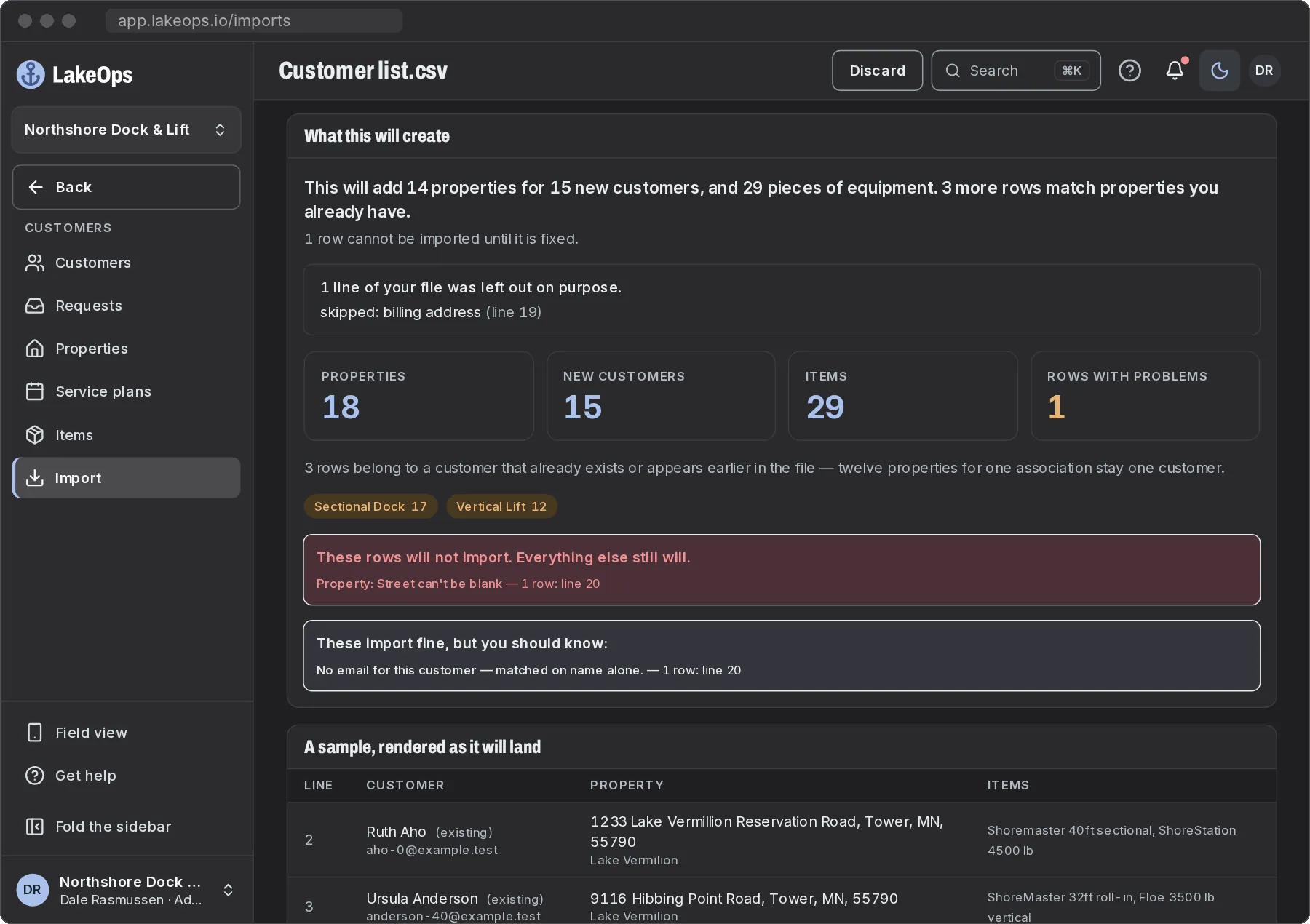
Read the preview
Before anything is written you see how many properties, new customers and items the file will create, every row that won’t import and why, by line number, and a sample of rows the way they’ll land.
-
Import
Row by row, so one bad line can’t take the good ones with it. A row that disagrees with what LakeOps already has is held for your answer, not overwritten.
-
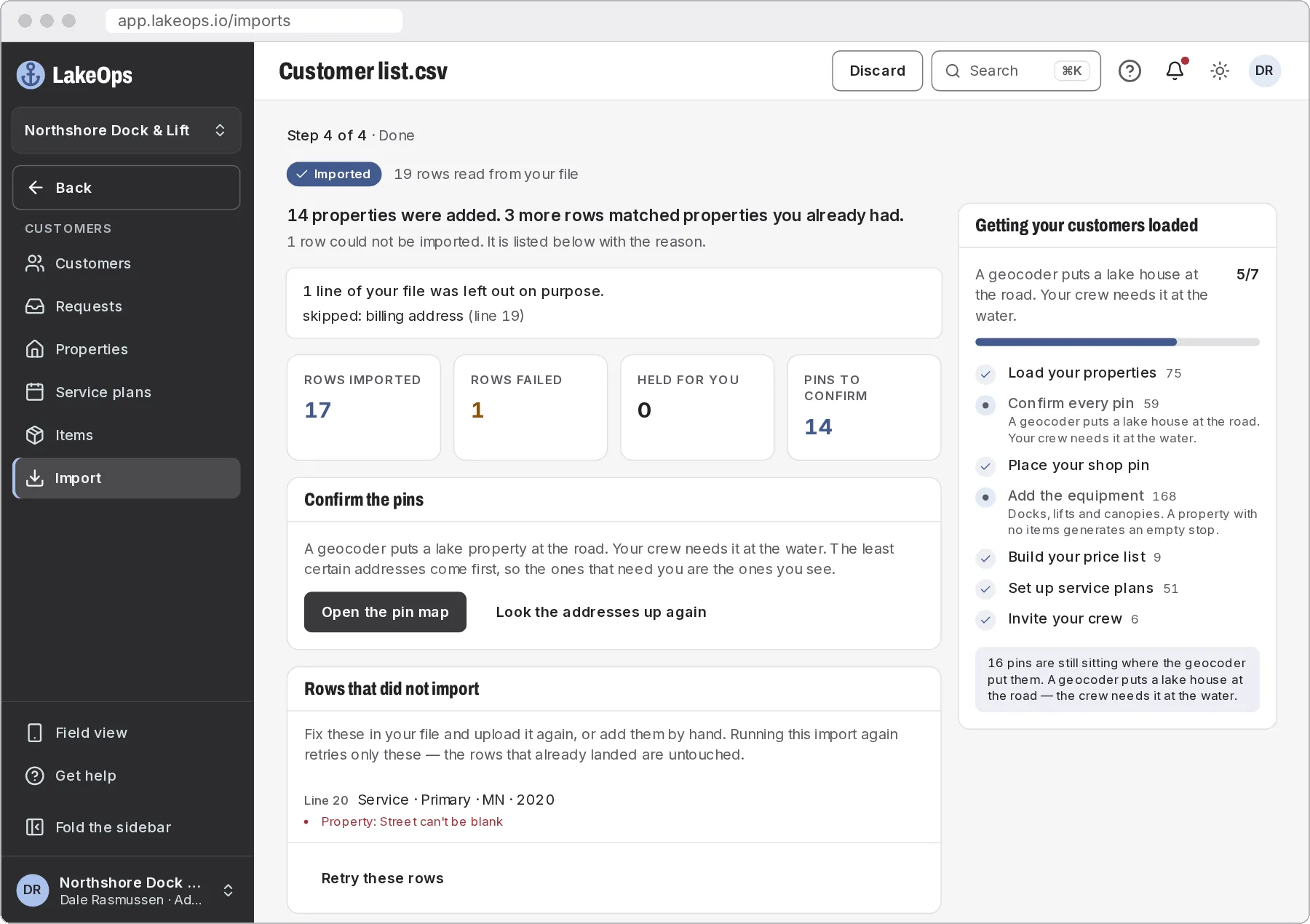
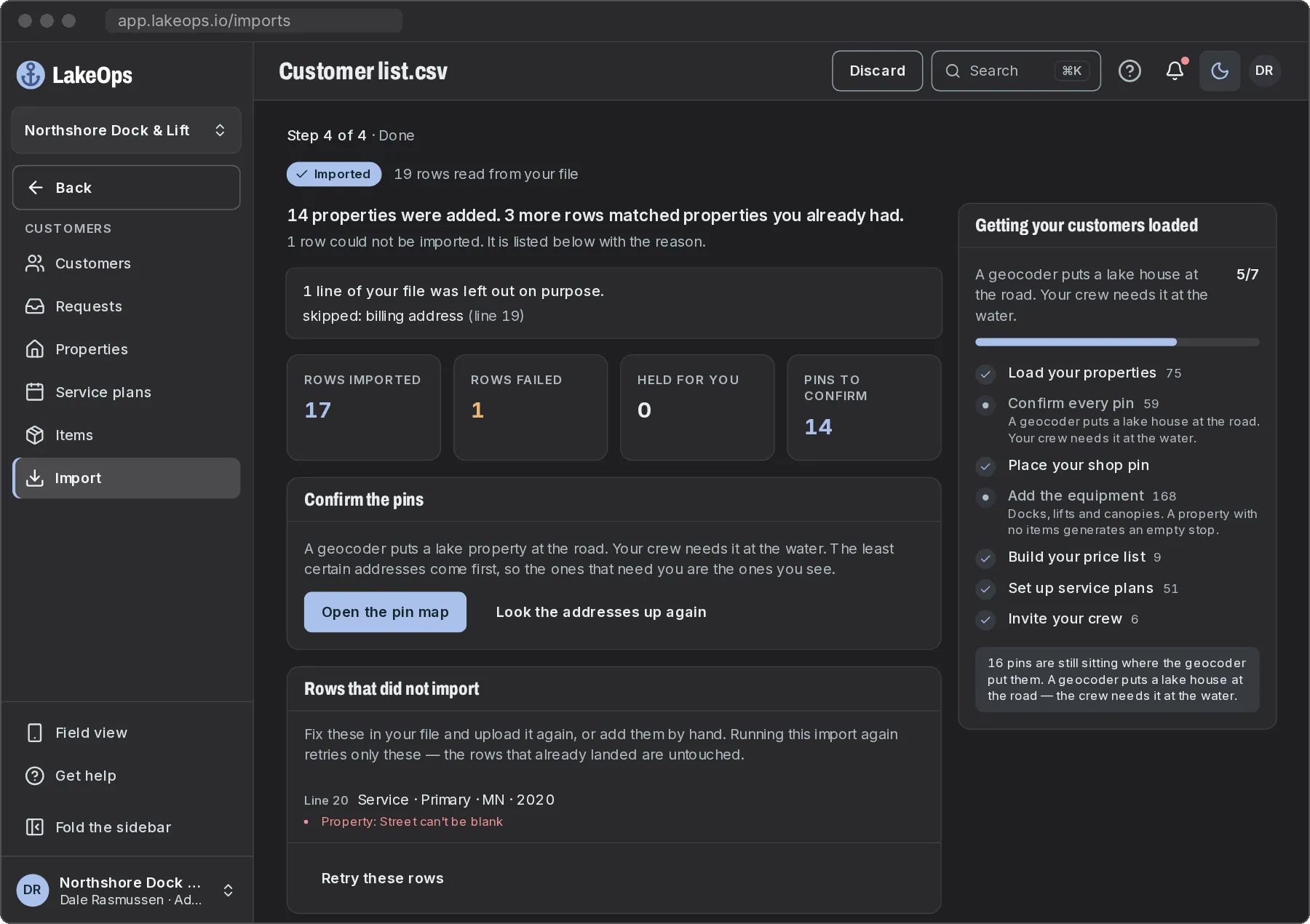
Confirm the pins
Addresses are looked up for you, but a geocoder puts a lake property at the road. The pin map shows the least certain first, and you drag each one to the dock. A file with latitude and longitude columns places its own pins.
The preview
See what it will create before anything is saved
The preview counts what the file will make and lists every row that won’t import, by line, with the reason. Nothing has been written yet: fix the file and upload it again, or go ahead and add the few stragglers by hand.
- Customers you already have are matched, not copied — by their ID from your old system first, then email, then phone. A match on surname and ZIP alone is flagged for you to check.
- Twelve properties for one association stay one customer.
- A property is matched inside its own customer, by address or by a pin within about 80 feet, so two cabins stay two.
- Equipment columns become docks and lifts, with a type you can change before anything is made.
Safe to run again
Run the same file again and it adds nothing
Trying it is safe. A second run matches the customers and properties the first one made, fills in only what was blank, and holds anything that disagrees until you say which version is right. It never gives a property a second dock.
- Rows that failed are listed with the reason, and retrying runs only those — the rows that already landed are untouched.
- “My file is right” or “LakeOps is right”, row by row, for anything your file says differently.
- A pin somebody dragged by hand is never moved by a file.
Photos
Drop a stack of photos on the piece they belong to
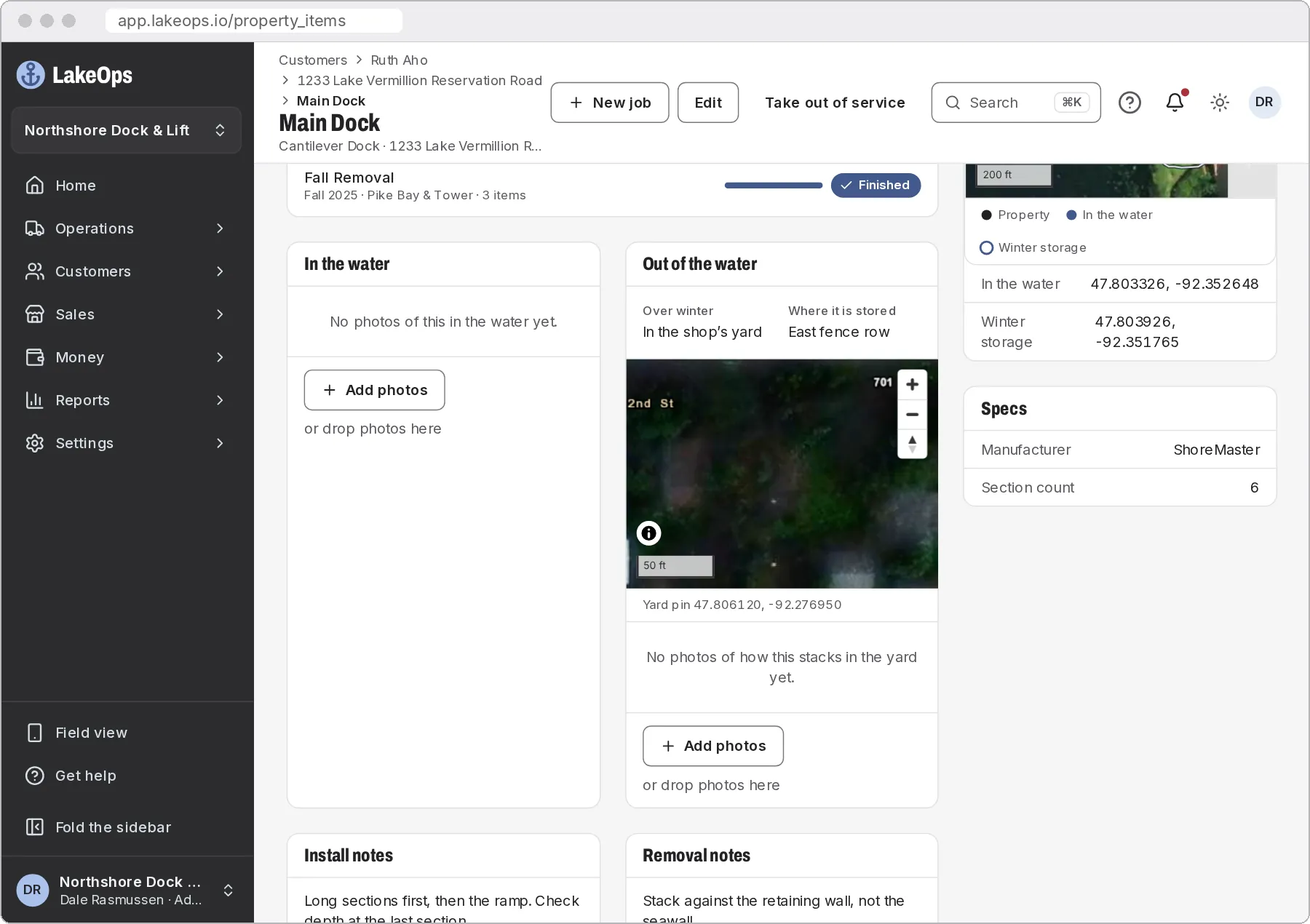
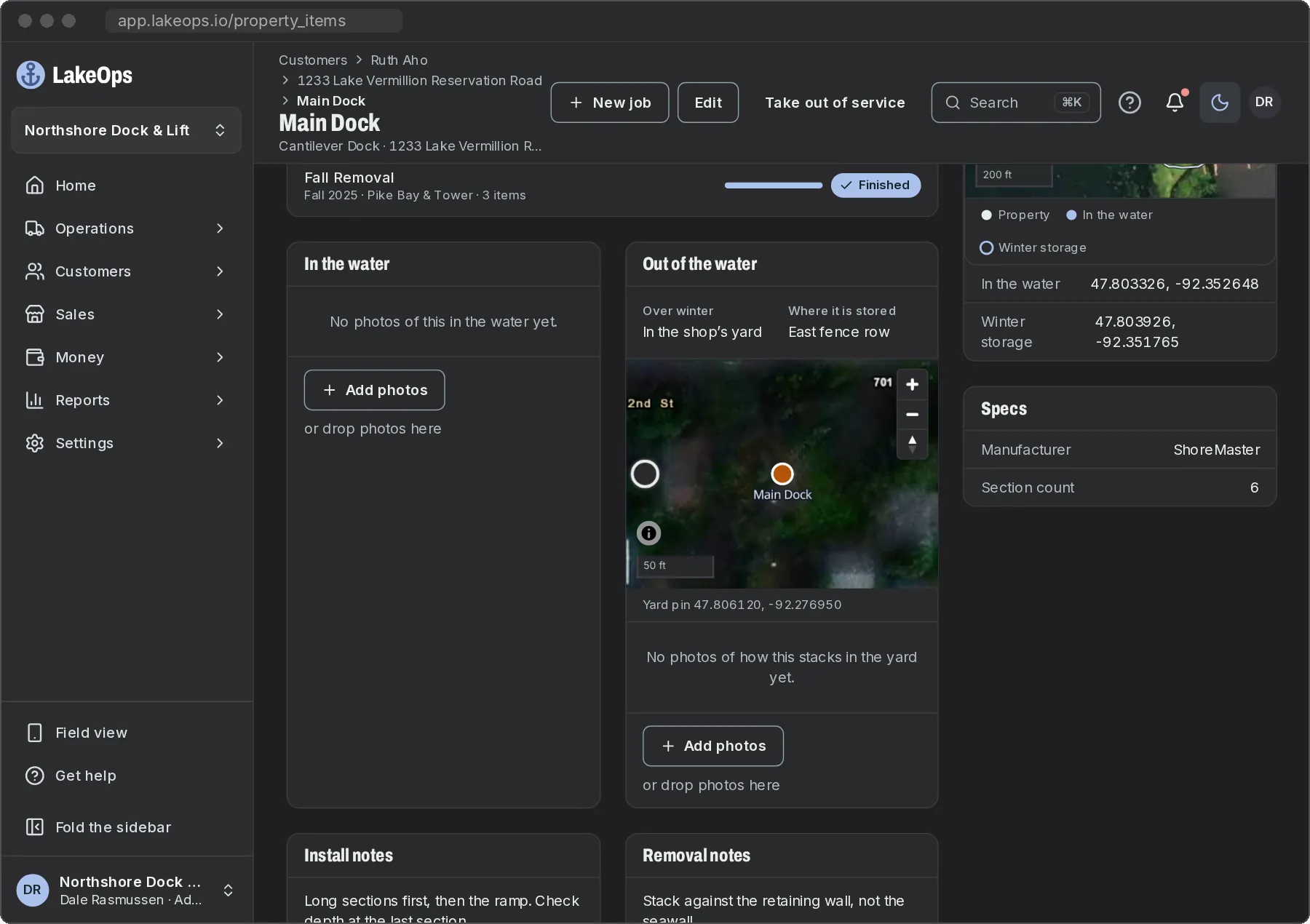
Every dock and lift has its own photo cards: in the water, and where it sits on shore. Choose Add photos, or drop a whole batch onto the card, and they upload together. A picture on the wrong card moves from its “…” menu: “Move to…” puts it on another piece or another property, and “Also show on…” puts the same photo on a second card without a second copy.
- A photo dropped twice is sent once, and one that’s already in LakeOps isn’t uploaded again.
- iPhone photos are converted as they arrive.
- When and where each picture was taken is read from the photo, then stripped from the copy that’s stored.
- A file that isn’t a photo is skipped and listed, so nothing goes missing quietly.
- A photo on a property but on no card waits in the property’s Unsorted photos panel until somebody puts it on a card or deletes it.
Coming from another product?
Bring your customers, your price list or your map pins over from any of these, or start from a spreadsheet of your own.
- RazorSync
- Jobber
- QuickBooks Online
- Housecall Pro
- Google Contacts
- Outlook
- mHelpDesk
- FieldEdge
- HubSpot
- Zoho CRM
- Mailchimp
- Square
- Xero
- onX
- Google My Maps
From Square and Xero, it’s your price list that comes across: upload their item export to Products the same way.
onX and Google My Maps keep map pins rather than a customer list. Once your properties are in LakeOps, send us the pin file and we put each pin we can match on the property it belongs to. A pin somebody placed by hand is left where it is.
Everything else on the list exports your customers as a spreadsheet. Upload that spreadsheet, an Excel workbook or a CSV — if the download comes as a zip, unzip it and upload the file inside — and match any column LakeOps doesn’t know once, on the same screen. Where LakeOps knows a product’s export, the columns it knows are matched for you.
Anything else — a spreadsheet you built yourself, a CRM export, a list from your accountant — you match column by column on the same screen, and the preview shows the result before anything is saved.
Moving from another product, tool by tool
Step by step: importing your customer list
Product names belong to their owners. LakeOps is not affiliated with any of them.
What comes across
One row per property, with its customer on the same line. A customer with three cabins is three rows and one customer.
- Customers: name, company or association, email, phone, and their ID in your old system
- Properties: address, unit, property name, fire number, lake, zone, access notes, notes and tags
- Equipment: docks, lifts and anything else in a column — as a name or model, a count, or a measurement
- Pins: latitude and longitude, when your file has them
- Lakes: added from the file as they’re met, if you want them
- A link back to each record in your old system
Questions about this
- Can I upload an Excel file?
- Yes. Upload the .xlsx itself. If it has more than one sheet, LakeOps reads one and asks which. An older .xls file, or a workbook with a password, needs saving as .xlsx or CSV first, and LakeOps says so rather than guessing.
- How big a file can I import?
- Up to 20,000 rows per file. A bigger book goes in as more than one file, and each one is matched against what the others already created.
- What happens if I import the same file twice?
- It adds nothing. Customers and properties already in LakeOps are matched, only blank fields are filled in, anything that disagrees waits for you to choose, and no property gets a second dock.
- Does it bring in past jobs and payments?
- No. An import brings in customers, properties and the equipment on them — what LakeOps needs to plan a season. Past jobs and payments stay in the product you’re leaving.
- My software isn’t listed. Can I still import?
- Yes. Any export that comes out as an Excel workbook or a CSV imports. You match its columns yourself on the same screen, and the preview shows what it will create before anything is saved.